Showing posts with label jailbreak. Show all posts

3gs 1015 error fix

    3gs 1015 error fix3gs 1015 error fixed successfully with 4.2.1 custom firmware.


    1.open redsnow latest version

    2.browse file 4.2.1 3gs orginal firmware

    3.select only this option ( just enter pwned DFU mode right now)

    4.then flash with this Download custom firmware .


    5.after finish flash Do redsnow jailbreak procedure
    ( if new bootrom means stuck in apple logo after jailbreak pls dont try to flash again just do with redsnow JUST BOOT TETHERED RIGHT NOW option and wait for boot)Source URL: https://k12-information.blogspot.com/search/label/jailbreak
    Visit Techno Information for Daily Updated Hairstyles Collection

Jailbreak iOS 4.3.3 Untethered on iPhone 4, 3GS, iPad, iPod touch with PwnageTool 4.3.3

    The just released PwnageTool 4.3.3 by the iPhone Dev Team can jailbreak iOS 4.3.3 on iPhone 4, 3GS, iPad (1st-gen), iPod touch 4G/3G, Apple TV, and at the same time will help retain the old baseband for iPhone 4 and 3GS users so that they can unlock using Ultrasn0w.If your iPhone doesn’t rely on a carrier unlock, you can use Redsn0w for both Windows and Mac to easily jailbreak your device on iOS 4.3.3. Complete step by step instructions can be found here.Simply follow the instructions posted below to jailbreak iOS 4.3.3 on Mac using PwnageTool 4.3.3. If you are on Windows, or if you have Verizon iPhone 4 on iOS 4.2.8, simply follow our step by step instructions posted here to jailbreak using Sn0wbreeze 2.7.


    Step 2: Download iOS 4.3.3 firmware. Move all these files to the desktop.

    Step 3: Start PwnageTool in “Expert mode” and select your device:

    Step 4: Browse for iOS 4.3.3 firmware for your device as shown in the screenshot below:
    Jailbreak iOS 4.3.3 Untethered on iPhone 4

    Step 5: Now select “Build” to start creating custom 4.3.3 firmware file:
    NOTE: If you are with unofficial carrier, and want to preserve the old baseband so that it can be unlocked using Ultrasn0w, make sure you check “Activate the phone” option which is found under “General”.

    Step 6: PwnageTool will now create the custom .ipsw file for your iPhone which will be jailbroken.

    Step 7: Now follow the following steps to enter DFU mode using PwnageTool:
    Hold Power and Home buttons for 10 seconds
    Now release the Power button but continue holding the Home button for 10 more seconds
    You device should now be in DFU mode


    Step 8: Start iTunes, click on your iOS device icon from the sidebar in iTunes. Now press and hold left “alt” (option) button on Mac, or Left “Shift” button if you are on Windows on the keyboard and then click on “Restore” (Not “Update” or “Check for Update”) button in the iTunes and then release this button.
    This will make iTunes prompt you to select the location for your custom firmware 4.3.3 file. Select the required custom .ipsw file that you created above, and click on “Open”.
    Step 9: Now sit back and enjoy as iTunes does the rest for you. This will involve a series of automated steps. Be patient at this stage and don’t do anything silly. Just wait while iTunes installs the new firmware 4.3.3 on your iOS device. Your iOS device screen at this point will be showing a progress bar indicating installation progress. After the installation is done, your iOS device will be jailbroken on iOS 4.3.3.
    Source URL: https://k12-information.blogspot.com/search/label/jailbreak
    Visit Techno Information for Daily Updated Hairstyles Collection

Unlock 4.3.3 iPhone 4 3GS Ultrasn0w 1.2.3

    Ultrasn0w 1.2.3. iPhone dev-team has released new version of ultrasn0w, they released ultrasn0w 1.2.3 to unlock iPhone 4 and iPhone 3GS on iOS 4.3.3 on old basebands. check out all supported basebands on ultrasn0w 1.2.3 after the jump
    Supported basebands:
    01.59.00 / 04.26.08 / 05.11.07 / 05.12.01 / 05.13.04 / 06.15.00
    Unsupported basebands :
    02.10.04 / 03.10.01 / 04.10.01 / 05.14.02 / 05.15.04 / 05.16.02
    iPhone 3GS users:
    You have to jailbreak your iPhone on 6.15.00 basebands on iOS 4.1 / 4.2.1, you can follow this guide for PwnageTool Mac or this guide for Redsn0w Windows / Mac (You may lose your GPS).

    Requirement:
    You have to jailbreak your iPhone 4 or iPhone 3GS on the latest iOS 4.3.3, you can follow  This Guide (Untethered PwnageTool 4.3.3 for Mac) or This Guide (Untethered Sn0wbreeze 2.7 for Windows)
    Step 1: Open Cydia on your iPhone 4 or 3GS, Go to Manage->Sources.

    Step 2: Now tap on “Edit”, then tap on “Add”.


    Step 3: Now search for ultrasn0w 1.2.3 then install it. By installing ultrasn0w 1.2.3, your device became unlocked.

    Step 4: Finally, restart your iPhone and  you should now enjoy an unlocked iPhone 4 or 3GS on  iOS 4.3.3.Source URL: https://k12-information.blogspot.com/search/label/jailbreak
    Visit Techno Information for Daily Updated Hairstyles Collection

Fix Cydia Running Very Slow After Jailbreaking

    Cydia Running Very Slow After JailbreakingOne of our readers complain about the slowness of Cydia app after jailbreaking iPhone 3GS on iOS 4.2.1 using Greenpoison for Windows. so here’s the solution.We will show you two ways to fix the slowness of Cydia App after jailbreaking iPhone 3GS on iOS 4.2.1 using Greenpoison for Windows.Way 1: first try to reset your phone’s network setting to do this follow the step below: Settings -> General -> Reset -> Reset Network Settings.Way 2 : if you have added a new Cydia repo before this error? If yes, try to remove it and reboot your iOS device. You can follow the steps below on how to uninstall broken Cydia repo.

    Make sure that you have the latest version of Cydia (version 1.1.1) installed on your jailbroken iPhone.
    If you have the old version, then I would recommend you to update your Cydia by using the steps below:
    Step 1: Launch Cydia and go to Changes. Then under Changes tab, tap the Refresh button in the top left corner to start downloading Cydia 1.1.1.
    Step 2: After Cydia download is complete and all packages have been updated, the app will prompt you with the option to complete the Upgrade in order to install the new Cydia. This process will take few minutes as it also updates other repos, apps, and tweaks that you installed on your device.
    Step 3: The app will prompt you to confirm the update. Just simply confirm it and wait for Cydia to complete all the necessary changes. Once done, just simply close Cydia app.
    Source URL: https://k12-information.blogspot.com/search/label/jailbreak
    Visit Techno Information for Daily Updated Hairstyles Collection

Download iFaith v1.3.2 For Windows

    iH8Sn0w released a couple of updates for iFaith, bringing iFaith to version 1.3.2.What is new in iFaith v1.3.2Used a different method to convert binary plists from TinyUmbrella SHSH Blobs to xml format to parse.Fixed minor restore issues on 4.3.x for iPad 3G models.The .NET framework that came pre-shipped with Windows Vista didn’t have an essential resource used in iFaith. 

    A new method has been implemented to get around this requirement.Fixed issue where iTunes’ plist utility was unable to be located on international language formatted pcs.
    Note: iFaith v1.3.2 only supports up to the iOS 4.3.3 firmware. In case you are not yet familiar with iH8Sn0w’s SHSH blob saving tool iFaith, here is a quick run-down:
    iFaith allows you to dump SHSH blobs directly on to your physical iDevice. Now the difference between other SHSH saving programs like TinyUmbrella is that iFaith allows you to save SHSH blobs for a specific firmware you are running even if Apple is not currently signing that firmware. In most cases, using iFaith is also a more reliable way to downgrade your iDevice. For example: If you wanted to save your iOS 4.3.3 SHSH blobs right now using a tool like TinyUmbrella you would not be able to. Using a tool like iFaith, however, you could save your SHSH blobs on the iOS 4.3.3 firmware.

    Source URL: https://k12-information.blogspot.com/search/label/jailbreak
    Visit Techno Information for Daily Updated Hairstyles Collection

How to Backup SHSH Blobs Using TinyUmbrella

    Backup SHSH Blobs Using TinyUmbrellaThese are instructions on how to backup your SHSH blobs using TinyUmbrella for Windows.Additional Note:You can only Save blobs of those firmware's which are currently getting signed by Apple .It's Means you can't save blobs for any lower version. 1.Download the latest version of Firmware Umbrella from here to your Desktop.

    2.Right Click umbrella-4.1.13.exe and Choose Run as administrator from the contextual popup menu.If you get a Windows Security Alert, make sure both boxes are checked, and hit Allow Access.

    3.Make sure your iPhone is plugged into the computer and select it from the list of connected devices on the left.
    4.Click the Save SHSH button.
    5.Once completed you will notice a new entry in the Saved SHSHs for iPhone list confirming the successful save of your SHSH blobs.
    Source URL: https://k12-information.blogspot.com/search/label/jailbreak
    Visit Techno Information for Daily Updated Hairstyles Collection

Fix jailbreak error 3194

    Fix jailbreak error 3194If you run into Error 3194 within iTunes when you are trying to restore your iPhone, iPad, or iPod touch, you can fix it by temporarily blocking Apple’s firmware signing services. Error 3194 seems to be triggered when unsigned firmware is used, often during an iOS downgrade or even during some restores. Here’s how to resolve the error:

    Fix Error 3194
    The fix is the same regardless of what operating system you are using:
    Quit iTunes
    Locate your hosts file, in Mac OS X this is /etc/hosts and in Windows this is c:\windows\system32\drivers\etc\hosts
    Open the hosts file with Administrator privileges
    Add the following lines to the very bottom of the hosts file:
    74.208.105.171 gs.apple.com

    Connect your iPhone to the computer
    Launch iTunes
    Put the iPhone/iPad/iPod into DFU mode by turning the phone off and then holding down the sleep and power button for 10 seconds, then release the power button but hold onto the home button until iTunes tells you that the device is now in recover mode
    Use the iTunes Restore feature as usual with the iOS device
    Once your iOS update is finished, remove the “74.208.105.171 gs.apple.com” line from your hosts file again so that iTunes can properly update as usual. If you need them, you can get iPhone firmware, iPad firmware, and iPod touch firmware directly from Apple. If you are wondering what the IP address is that you are reassociating gs.apple.com with, it’s saurik’s (of Cydia fame) signing server. Thank you to Parakeet for providing this fix.
    Source URL: https://k12-information.blogspot.com/search/label/jailbreak
    Visit Techno Information for Daily Updated Hairstyles Collection

iPad 2 hacked @comex

    iPad 2 hackediPad 2 was just recently released, and already, a hacker is claiming that he's already cracked it open. A guy going by the handle of @comex at Twitter posted this video of the iPad 2, allegedly jailbroken. In the video, you cn see Cydia 1.1 running on the latest craze gadget from Apple.
    He said in his tweet, "Would've had it yesterday if I didn't have to spend 15 days looking for a replacement exploit."  Although the hack came just in the heels of the iPad 2 release, it still took quite a bit longer than usual, presumably because Apple had tried to strengthen its defenses against hackers.
    It's still a breakthrough nonetheless for those looking to jailbreak their iPad 2. Check out iPad 2 running on Cydia 1.1
    Source URL: https://k12-information.blogspot.com/search/label/jailbreak
    Visit Techno Information for Daily Updated Hairstyles Collection

Downgrade 4.3.5 to 4.3.3 without SHSH Blobs - iPhone 4, 3GS, iPod Touch 4G, 3G, iPad

    Downgrade 4.3.5 to 4.3.3 without SHSH Blobs
    Many users have upgrading their iOS devices to iOS 4.3.5 without saving 4.3.3 shsh files and others saved 4.3.3 shsh files but failed to follow the guide as they may faced some errors such as 3194, 1600, 1602, 1013, 1015, 20 or 1611. 
    Anyway we have good news for you, one of our reader was successfully able to downgrade his iPhone from 4.3.5 to 4.3.3 without shsh blobs files.
    Downgrade 4.3.5/4.3.4 to 4.3.3 - iPhone 4, 3GS, iPod Touch 4G, 3G, iPad :
    Required Downloads :


    Downgrade 4.3.5 to 4.3.3 without SHSH blobs files Tutorial :
    Step 1: You have to go to C:\Windows\System32\drivers\etc, and replace "HOST" file with the downloaded one in "Restore Files" folder
    Step 2: Open redsn0w and jailbreak your device, you can follow this tutorial - Click Here - but you have to point to iOS 4.3.3 instead of 4.3.4.
    Step 3: Then the iPhone will stop on the recovery mode.
    Step 4: Open Tinyumbrella (can be found in "Restore Files" folder above), then click on your iPhone name at the left then press on Start Tss Server.
    Step 5: Open iTunes and restore your iPhone with iOS 4.3.3 firmware (Shift + Restore) then close it.
    Step 6: You will find error 1013, at this time you have to use Fixrecovery (can be found in "Restore Files" folder above).
    Step 7: Open iFaith (can be found in "Restore Files" folder above) and Save shsh file.
    Step 8: Open sn0wbreeze (can be found in "Restore Files" folder above) to create custom iOS 4.3.3 firmware and restore with it. Done.
    Source URL: https://k12-information.blogspot.com/search/label/jailbreak
    Visit Techno Information for Daily Updated Hairstyles Collection

iPhone 5 – Pre Release 2011

    If you are wondering what the Apple iPhone 5 will look like, look no further than here because this is how it should be. We’ve had concepts drawn, images of what could be Apple’s next version of the iPhone have been posted online that reveal subtle design changes to the device.
    iPhone 5 – Pre Release 2011


    Today, a picture of a strange iPhone has been spread widely on Chinese technology forums and blogs. Are these pictures of the next-gen iPhone 5 ? However, these images of iphone 5 are neither released nor approved officially by Apple.Source URL: https://k12-information.blogspot.com/search/label/jailbreak
    Visit Techno Information for Daily Updated Hairstyles Collection

Jailbreak iOS 4.3.3 Untethered Using Redsn0w 0.9.6 RC15

    Jailbreak iPhone 4.3.3
    The instructions below will help you to perform untethered iOS 4.3.3 jailbreak with Redsn0w 0.9.6rc15 for iPhone 4, 3GS, iPod Touch 4G, 3G and iPad 1.
    Note: Users who rely on unlock should stay away from iOS 4.3.3 and Redsn0w 0.9.6RC15 but they can use
    PwnageTool or Sn0wBreeze to preserve the baseband of their iDevice.
    The same guide works for Windows and Mac users.
    Untethered iOS 4.3.3 Jailbreak with Redsn0w 0.9.6RC15

    Step-1 -Restore iOS 4.3.3 on your iDevice if it is not already running over it.
    Step-2 -Click Browse button, navigate to downloaded iOS 4.3.3 firmware file and select it. Redsn0w will do some process to recognize 4.3.3 IPSW file and then click Next.
    Step-3 -Check mark the box followed by Install Cydia option and click Next.
    Step-4 -Make it sure your attached iDevice is turned OFF and Plugged in to your Pc and then click Next.
    Step-5 -Follow on screen instructions to put your iDevice into DFU Mode.
    Step-6 -When your iDevice will enter successfully into DFU mode, RedSn0w will start untethered jailbreaking of iOS 4.3.3.
    On completion you will have untethered iOS 4.3.3 jailbroken iDevice in your hand.
    Source URL: https://k12-information.blogspot.com/search/label/jailbreak
    Visit Techno Information for Daily Updated Hairstyles Collection

Jailbreak via Tinyumbrella-5.00.10

    Jailbreak iphone  via Tinyumbrella-5.00.10
    TinyUmbrella 5.00.10 has support for iOS 5 Beta 3,iOS 5 Beta 4,iOS 5 Beta 5 and iOS 5 Beta 6.

    TinyUmbrella enables you to save SHSH blobs of your idevice if you want to downgrade it to older firmware.

    I finally got around to adding 5.0 beta support for the past three betas. Sorry for the delay. Life has been… well… life. Enjoy!

    And YES! I am still working on the rewrite for TU. I plan on having DFU pwnage support for those of you with devices that support limera1n. I’m probably going to try to add pwnage2 support if possible for those of you with devices that support it. I’ll keep you updated as much as possible. 

    Those who are unaware,SHSH blobs is a signature file used by Apple to verify about the version of firmware which you are running and are device specific which means that you cannot use SHSH Blobs of someone else.

    We know that downgrading iOS 5 impossible as Apple is closing saving of SHSH blobs.Hence, it is advisable that you save SHSH blobs for the devices which Apple is still signing so that you can downgrade later if required.

    Source URL: https://k12-information.blogspot.com/search/label/jailbreak
    Visit Techno Information for Daily Updated Hairstyles Collection

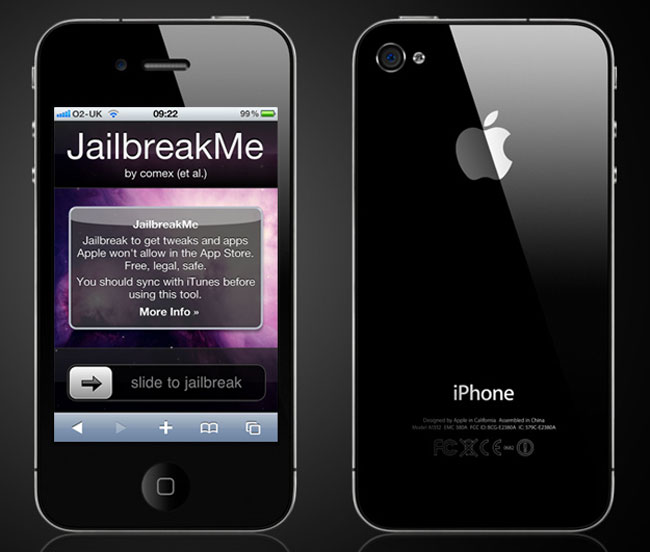
Download JailbreakMe 3.0 – Jailbreak iPhone / iPod / iPad

    JailbreakMe 3.0


    What is JailbreakMe Tool mean ?
    JailbreakMe is a jailbreak tool online, unlike the tool Redsn0w and Greenpois0n, it does not require the use of a computer and the jailbreak process is very fast execution.
    Your jailbreak your iDevice runs Online (Internet) with the Safari application on your iDevice.
    Untethered your jailbreak is, when you restart (reboot) your iDevice, it will require no assistance from a third party software to gain access back to the springboard.

    JailbreakMe 3.0 Preamble :

    Make sure you have an Internet connection on your iDevice (WiFi or 3G).
    It is advisable for the model to cut the iPhone 3G and jailbreak to do this via WiFi at the moment are still some bugs to fix in JailbreakMe.
    It is recommended to restore your iDevice, to erase all traces of the old jailbreak and allows to have a stable jailbreak.
    It is strongly recommended to restore your iDevice as a new device. Just sync your new applications, music, videos, images, notes and contacts (on Windows, make sure you have Outlook installed) via the iTunes software following the restoration.
    But you can do this on a jailbreak iDevice with lots of installed apps and data such as images, contacts, etc.. without loss of data following the jailbreak.
    In this case it is advisable to synchromiser your iDevice with iTunes prior to the jailbreak.
    IPhone user, you must have the SIM card that came with your iPhone official for its activation following the restoration of the IOS.

    JailbreakMe 3.0 How to Guide :

    • Go to “Settings” of your iDevice.
    • Disable the “Block pop-up” and then empty your cache.
    • Then in the “Settings” menu of your iDevice, go to “General” then “Auto Lock” and click “Never”.
    • Then start the application from your iDevice Safari.
    • Then type in the address bar of your browser: http://jailbreakme.com
      Click on “Free” and “install” to start the jailbreak online.
    • The Safari application is closed, return to your springboard.
    • The application installs Cydia on your 2 nd page of your springboard.
    • You can see a very quick jailbreak procedure compared to using software like
    • Redsn0w, does not need to go into DFU mode.
    • You must complete the installation of the application Cydia.
    • Launch application from Cydia on your springboard iDevice.
    • Choose one use “user” mode for novices and let the data load.
    • For protection of the fault operated tool JailbreakMe (feat using Safari on a PDF file), install the package “PDF Patcher 2? from Cydia.
    • It is advisable to manually reboot your iDevice (Home + We then turn off).
    Source URL: https://k12-information.blogspot.com/search/label/jailbreak
    Visit Techno Information for Daily Updated Hairstyles Collection

Redsn0w 0.9.8b7b Jailbreak iOS 5 beta 7

    Redsn0w 0.9.8b7b Jailbreak iOS 5 beta 7
    Apple releases another version of iOS 5 Beta, that is, iOS 5 Beta 7 to address some important bug fixes. DevTeam has come up with an updated version of Redsn0w which has the capability to JailBreak iOS 5 Beta 7 by pointing towards the respective .ipsw. However, you can still JailBreak your iDevice using iOS 5 Beta 6 but this version of Redsn0w 0.9.8b7b makes your life even easier. Few days back, Redsn0w 0.9.8beta 7 was released which focused towards updated iOS 5 Beta of iPad 1. Though, all the functionality would remain intact. Redsn0w o.9.8b7 allows verbose booting, custom boot logos etc for customization loving people. As always, the JailBreak would remain tethered for all other iDevices except old bootrom iPhone 3GS on iOS 4.3.5. You can either use previous or latest version of Redsn0w to JailBreak your iPhone, iPod touch or iPad on iOS 4.3.4/iOS 4.3.5. Don’t update if your are not a developer to any version of iOS Betas.

    Source URL: https://k12-information.blogspot.com/search/label/jailbreak
    Visit Techno Information for Daily Updated Hairstyles Collection

sn0wbreeze v2.8b7 For iOS 5 beta 7

    Install, Activate iOS 5 Beta 7 Without Developer Account, Registered UDID (Links + Full Guide + Jailbreak)  We’re showing in this post an exclusive guide to install and activate iOS 5 beta 7 without developer account or a registered UDID. We will use the Sn0wbreeze 2.8b7 tool to remove the UDID check of iOS 5 beta 7. We’ve tried this guide on a non-developer iPhone 4 and it worked successfully, just follow the below steps carefully and you’ll get iOS 5 beta 7 jailbroken on your iOS device.

    This guide supports all devices except iPhone 3GS old bootrom and the iPad 2. You’ll of course need iOS 5 beta 7 firmware .DMG file and iTunes 10.5 beta 7. We’ll show you how to convert .DMG iOS 5 file to .IPSW and install it using iTunes 10.5 beta 7.
    How to Install, Activate and Jailbreak iOS 5 Beta 7:
    STEP 1: Download iOS 5 beta 7 firmware .DMG file for your iOS device and iTunes 10.5 beta 7 from the links found here.
    STEP 2: Get free TransMac to convert / change .DMG file to .IPSW using the video guide here.
    STEP 3: Now download Sn0wbreeze 2.8b7 from here.
    STEP 4: Open Sn0wbreeze 2.8b7 then hit Browse point and point it to the extracted .IPSW iOS 5 beta 7 file you got from Step 2.
    sn0wbreeze v2.8b7 For iOS 5 beta 7
    STEP 5: If everything goes okay, you’ll get your device identified as below:
    sn0wbreeze v2.8b7 For iOS 5 beta 7
    STEP 6: Now click on Expert Mode then Build IPSW.
    sn0wbreeze v2.8b7 For iOS 5 beta 7
    STEP 7: After building your custom IPSW file of iOS 5 beta 7, you’ll have to get your device in DFU mode. Just follow the on-screen instructions to PWN DFU mode your device.
    sn0wbreeze v2.8b7 For iOS 5 beta 7
    STEP 8: After getting the black screen on your iOS device, head to the installed iTunes 10.5 beta 7 from Step 1 and open it up.
    STEP 9: Before restoring your device, make a backup for your settings, contacts, photos and etc. by right clicking on your iPhone’s icon and hit Backup.
    STEP 10: Now, while holding the Shift key, click on Restore and point it to the Sn0wbreeze custom IPSW you’ve already made.
    STEP 11: Wait few minutes and you’ll finally get your iPhone, iPad or iPod touch with iOS 5 beta 7.
    STEP 12: After done with iOS 5, you’ll need to backup your iOS things. Just open iTunes and restore from your old Backup.
    Notes:
    - In case you got Error 10, then you’re not using iTunes 10.5 beta 7.
    - In case you got other Errors, then you didn’t put your device in DFU mode. Just use iREB (download here) to put your device in PWN DFU mode.
    - iOS 5 beta 7 is tethered only jailbroken, so you’ll have to use iBooty (Sn0wbreeze 2.8b7 downloads it in the same directory of your custom IPSW) everytime your iPhone is rebooted to get Cydia installed again.
    sn0wbreeze v2.8b7 For iOS 5 beta 7
    That’s it! You’ll be able now to enjoy jailbroken iOS 5 beta 7 on your iPhone, iPa and iPod touch. Let us know how it does with you in the comments section below.

    Source URL: https://k12-information.blogspot.com/search/label/jailbreak
    Visit Techno Information for Daily Updated Hairstyles Collection

Jailbroken Quick Tool 1.6.0 + Patch to 1.6.1

iphone tools collection

3.1.3 Jailbreak/Unlock Iphone 2g, 3g & Ipod Touch 1st gen and 2nd gen with Redsnow


    IMPORTANT PLEASE READ: Before you start please make sure you read this and understand it. Currently Redsnow 0.9.4 can only Jailbreak and Unlock Iphone 2g & 3g, Jailbreak Ipod 1st gen and 2nd gen (Non MC Models). New version of Itunes 9.0.3 is safe to Update. No effect on Jailbreaking.
    Download Redsnow 0.9.4 for Windows here :
    Redsnow or here : Redsnow
    Download Redsnow 0.9.4 for Mac here:Redsnow or Download here : Redsnow
    ...............................................................................................................................
    Below are the 3.1.2 firmware files that you will be pointing in Redsnow 0.9.4. (Recap, you will be having 3.1.3 firmware in your IPhone 2g or 3g and ipod touch 1 & 2nd gen, but you will be pointing 3.1.2 firmware in Redsnow 0.9.4 to Jailbreak and Unlock)
    Download (Iphone 2g 3.1.2 Firmware file).
    Download (Iphone 3g 3.1.2 Firmware file).
    Download (Ipod 1st gen 3.1.2 Firmware File).
    Download (Ipod 2nd gen 3.1.2 Firmware file).
    Iphone 2g would be using 3.9 and 4.6 bootloaders to unlock there Iphone 2g , you can get them here respectively Download and Download
    ...............................................................................

    IMPORTANT: IF YOU HAVE AN IPHONE 2G OR IPHONE 3G USING AN UN-OFFICIAL SIM CARD (or No Sim Card at all) THEN AFTER UPDATING YOUR IPHONE FROM ITUNES , YOU WILL SEE ITUNES LOGO AND USB LOGO ON YOUR IPHONE SCREEN. DO NOT PANIC. AT THIS POINT SIMPLY CLOSE ITUNES AND RUN REDSNOW 0.9.4. THIS WILL HACTIVATE YOUR IPHONE 2G OR 3G AND OPEN IN NORMAL MODE. VOILA.
    You dont need the files that you see Below , but if someone wishes to have and save them then you are free to have them. These are 3.1.3 Firmware files for Iphone 2g, Iphone 3g, Ipod 1st gen and Ipod 2nd gen.
    Download (Iphone 2g 3.1.3 Firmware file)
    Download (Iphone 3g 3.1.3 Firmware File)
    Download (Ipod 1st gen 3.1.3 Firmware File)
    Download (Ipod 2nd gen 3.1.3 Firmware file)
    ..............................................................................
    Download this firmware file quickly since there is a Copyright on.Download
    Then connect your iphone to itunes and put your iphone in DFU mode. Now press shift + restore and browse 
    Source URL: https://k12-information.blogspot.com/search/label/jailbreak
    Visit Techno Information for Daily Updated Hairstyles Collection

Blog Archive