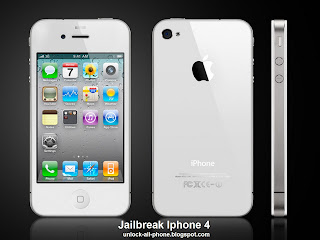
Install, Activate iOS 5 Beta 7 Without Developer Account, Registered UDID (Links + Full Guide + Jailbreak) We’re showing in this post an exclusive guide to install and activate iOS 5 beta 7 without developer account or a registered UDID. We will use the Sn0wbreeze 2.8b7 tool to remove the UDID check of iOS 5 beta 7. We’ve tried this guide on a non-developer iPhone 4 and it worked successfully, just follow the below steps carefully and you’ll get iOS 5 beta 7 jailbroken on your iOS device.
This guide supports all devices except iPhone 3GS old bootrom and the iPad 2. You’ll of course need iOS 5 beta 7 firmware .DMG file and iTunes 10.5 beta 7. We’ll show you how to convert .DMG iOS 5 file to .IPSW and install it using iTunes 10.5 beta 7.
How to Install, Activate and Jailbreak iOS 5 Beta 7:
STEP 1: Download iOS 5 beta 7 firmware .DMG file for your iOS device and iTunes 10.5 beta 7 from the links found here.
STEP 2: Get free TransMac to convert / change .DMG file to .IPSW using the video guide here.
STEP 3: Now download Sn0wbreeze 2.8b7 from here.
STEP 4: Open Sn0wbreeze 2.8b7 then hit Browse point and point it to the extracted .IPSW iOS 5 beta 7 file you got from Step 2.
STEP 5: If everything goes okay, you’ll get your device identified as below:
STEP 6: Now click on Expert Mode then Build IPSW.
STEP 7: After building your custom IPSW file of iOS 5 beta 7, you’ll have to get your device in DFU mode. Just follow the on-screen instructions to PWN DFU mode your device.
STEP 8: After getting the black screen on your iOS device, head to the installed iTunes 10.5 beta 7 from Step 1 and open it up.
STEP 9: Before restoring your device, make a backup for your settings, contacts, photos and etc. by right clicking on your iPhone’s icon and hit Backup.
STEP 10: Now, while holding the Shift key, click on Restore and point it to the Sn0wbreeze custom IPSW you’ve already made.
STEP 11: Wait few minutes and you’ll finally get your iPhone, iPad or iPod touch with iOS 5 beta 7.
STEP 12: After done with iOS 5, you’ll need to backup your iOS things. Just open iTunes and restore from your old Backup.
Notes:
- In case you got Error 10, then you’re not using iTunes 10.5 beta 7.
- In case you got other Errors, then you didn’t put your device in DFU mode. Just use iREB (download here) to put your device in PWN DFU mode.
- iOS 5 beta 7 is tethered only jailbroken, so you’ll have to use iBooty (Sn0wbreeze 2.8b7 downloads it in the same directory of your custom IPSW) everytime your iPhone is rebooted to get Cydia installed again.
That’s it! You’ll be able now to enjoy jailbroken iOS 5 beta 7 on your iPhone, iPa and iPod touch. Let us know how it does with you in the comments section below.
Source URL: https://k12-information.blogspot.com/search/label/sn0wbreezeVisit Techno Information for Daily Updated Hairstyles Collection